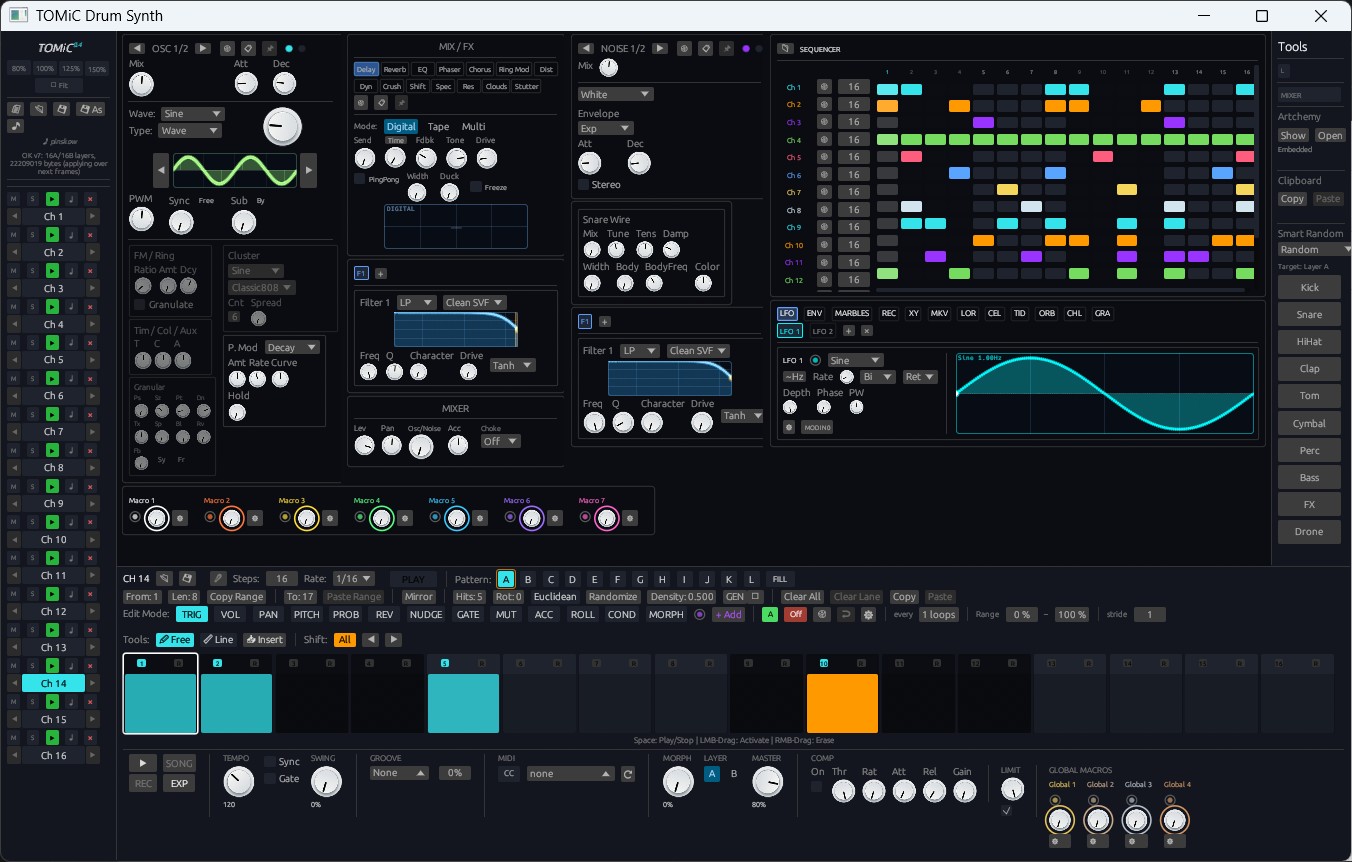
Each recipe is a short Python script using the Python client. They build on each other, so the variables carry over from one recipe to the next, but each part also stands on its own once you have the track ids from omni.tracks.list(). Every call shown was run against a live Omni, and all of it can be taken back with omni.edit.undo().
Tip. Everything an assistant does can be done with these same calls, and they are exactly the tools an MCP server exposes. When you wonder what an AI tool will do, try the call here first.
1. First contact
from omnidaw import Omni

omni = Omni()
print(omni.session.info())
for track in omni.tracks.list():
    print(track["index"], track["name"], track["kind"], track["id"])
session.info tells you the project, sample rate and number of tracks and scenes. tracks.list gives each track's id, which you pass to later calls.
2. A loop: chords, bass, melody and drums
key = {"root": "F", "mode": "minor"}
prog = {"key": key, "chords": "i VI III VII"}

keys = omni.tracks.create(kind="midi", name="Keys", instrument="builtin://piano-synth")["id"]
bass = omni.tracks.create(kind="midi", name="Bass", instrument="builtin://omni-synth")["id"]
lead = omni.tracks.create(kind="midi", name="Lead", instrument="builtin://omni-synth")["id"]
drums = omni.tracks.create(kind="midi", name="Drums", instrument="builtin://tomic")["id"]

# Chords as a pad, the same progression as a bass line
omni.clips.write_progression(track=keys, slot=0,
    progression={**prog, "perform": {"pattern": "pad"}})
omni.clips.write_progression(track=bass, slot=0,
    progression={**prog, "perform": {"chords": False, "bass": True}})

# A melody that follows the chords of the Keys clip
omni.clips.generate_melody(track=lead, slot=0, style="synth_arp", key=key, bars=4,
    register="high", chords_from={"track": keys, "slot": 0})

# Drums for the TOMNIC drum synth: x = hit, X = accent, . = rest, one character per 1/16
omni.clips.write_drums(track=drums, slot=0, lanes=[
    {"channel": "kick",  "steps": "x...x...x...x..."},
    {"channel": "snare", "steps": "....X.......X..."},
    {"channel": "hihat", "steps": "x.x.x.x.x.x.x.x.", "swing": 30, "velocity": 70},
])

omni.scenes.launch(scene=0)     # plays scene row 0 of every track
theory.progression shows what a progression text turns into without writing anything, and theory.library and theory.vocabulary list the 240 ready-made progressions and every style, pattern and mode name the other calls accept. clips.generate_melody takes the melody style from this list: stepwise_flow, minimal_cell, classical_arch, funk_groove, celtic_reel, bebop_line, arpeggio_loop, synth_arp, sequence_run, ambient_drift, tension_build, modal_motive. The same seed always gives the same melody.
3. From loop to song
Give the other scene rows more to play, then lay the scenes out as sections:
# Scene row 1: a fuller version of each part
for track in (keys, bass, lead):
    omni.clips.duplicate(track=track, slot=0, to_slot=1)
omni.clips.write_drums(track=drums, slot=1, lanes=[
    {"channel": "kick",  "steps": "x..x..x...x..x.."},
    {"channel": "snare", "steps": "....X.......X..X"},
    {"channel": "hihat", "steps": "xxxxxxxxxxxxxxxx", "velocity": 60},
])

song = omni.arrangement.build_song(sections=[
    {"scene": 0, "bars": 4, "name": "Intro"},
    {"scene": 1, "bars": 8, "name": "Drop"},
])
print(song["end_beat"], [s["name"] for s in song["sections"]])
omni.arrangement.play(from_beat=0)
build_song copies each track's clip of the scene row onto the timeline for the given number of bars and adds a marker per section. It refuses to overwrite a timeline that already has clips; pass clear_existing=True or a later start_beat to build next to existing material. Afterwards arrangement.edit_clip, copy_clip and remove_clip shape single clips, for example to mute the bass in the last bars of a drop.
4. Movement: automation
Find a parameter's key, then write breakpoints in beats, with values in the parameter's own unit:
cutoff = omni.params.list(track=lead, filter="cutoff")["params"][0]
print(cutoff["key"], cutoff["name"], cutoff["min"], cutoff["max"])

lo, hi = cutoff["min"], cutoff["max"]
omni.automation.write(track=lead, param=cutoff["key"], curve="smooth", points=[
    {"beat": 16, "value": lo + 0.2 * (hi - lo)},    # closed at the start of the drop
    {"beat": 48, "value": lo + 0.9 * (hi - lo)},    # open at the end
])

# Volume is in dB and pan from -1 to 1; no key needed
omni.automation.write(track=lead, param="volume", points=[
    {"beat": 0, "value": -30}, {"beat": 16, "value": -6},
])
print(omni.automation.list(track=lead))
The key of a parameter is instrument:<id> for the instrument and fx:<slot>:<index> for an insert, exactly as params.list returns it. It works for built-in instruments and for VST3 and CLAP plugins.
5. Listen to the mix and fix it
analysis.capture records the master (or one track) for a few seconds while the transport plays, and analyses it in the background. Wait for the job, then read the numbers:
omni.arrangement.play(from_beat=16)
analysis = omni.wait(omni.analysis.capture(source="master", seconds=8)["job"])

print("integrated", analysis["loudness"]["integrated_lufs"], "LUFS")
print("true peak ", analysis["level"]["true_peak_dbtp"], "dBTP")
print("balance   ", analysis["tonal_balance"])      # sub, bass, low_mid, mid, high_mid, high, air
print("stereo    ", analysis["stereo"])
Then act on what you hear. A compressor on the bass, and some reverb on the lead through a return bus:
omni.devices.add(chain={"track": bass}, device="Compressor")
print([p["name"] for p in omni.devices.get(chain={"track": bass}, slot=0)["params"]])
omni.devices.set_params(chain={"track": bass}, slot=0,
                        values={"Ratio": 3.0, "Threshold": -18.0})

space = omni.mixer.add_return(name="Space")["returns"][-1]["index"]
omni.devices.add(chain={"return_bus": space}, device="Reverb")
omni.mixer.set_send(track=lead, bus=space, level_db=-12)
Devices take their parameters by name, in real units; devices.get lists them with value, range and unit. Capture again to see the effect. To find where two tracks fight for the same frequencies, capture each one alone (source={"track": id}) and call analysis.compare(a=job_a, b=job_b).
6. Master for a streaming service
Pick a delivery target (master.targets lists them: spotify, apple_music, youtube, tidal, amazon_music, deezer, podcast, ebu_r128, atsc_a85, club), loop the loudest part and let Omni build a first chain from a measurement. Then close the gap in a loop:
omni.arrangement.set_loop(start_beat=16, end_beat=48, enabled=True)
omni.arrangement.play(from_beat=16)

job = omni.analysis.capture(source="master", seconds=15)["job"]
omni.wait(job)

chain = omni.master.build_chain(job=job, target="spotify")   # glue compressor + true-peak limiter
limiter = chain["limiter_slot"]

for _ in range(5):
    job = omni.analysis.capture(source="master", seconds=15)["job"]
    omni.wait(job)
    verdict = omni.master.check(job=job, target="spotify")
    print(verdict["integrated_lufs"], verdict["true_peak_dbtp"], verdict["notes"])
    if verdict["passed"]:
        break
    gain = next(p for p in omni.devices.get(chain="master", slot=limiter)["params"]
                if p["name"] == "Input Gain")
    omni.devices.set_params(chain="master", slot=limiter, values={
        "Input Gain": min(gain["max"], gain["value"] + verdict["gain_to_target_db"])})

result = omni.wait(omni.export.render(path="C:/Music/my-song.wav", target="spotify", fast=True)["job"])
print(result["path"], result["analysis"]["loudness"]["integrated_lufs"])
The loop matters: a limiter does not pass all the extra input gain on to the loudness, so one correction usually lands half-way. In a test on a drum and bass mix it took two rounds to go from -16.3 to -14.7 LUFS with the true peak at -3 dBTP. Capture for at least 15 seconds so the loudness measurement is meaningful. build_chain refuses when the master already has a Limiter; adjust that one with devices.set_params instead.
export.render with fast=True renders offline, faster than real time, and the job result contains an analysis of the written file. Without fast the song is played through the audio device in real time. Both write only to absolute .wav paths in existing folders and do not overwrite unless you pass overwrite=True.
7. Stems
result = omni.wait(omni.export.stems(folder="C:/Music/stems")["job"])
for f in result["files"]:
    print(f["name"], f["path"])
One WAV per track, rendered offline: each stem is its track soloed, with its returns, and without the master chain unless you pass through_master=True. Pass tracks=[...] to render only some.
8. Chop a break and play it back
Audio files must be allowed first: the user switches on Let clients read audio files in Omni's Settings, AI Create. Check "files" in omni.capabilities.
drum_stem = next(f for f in result["files"] if f["name"] == "Drums")

chop = omni.tracks.create(kind="audio", name="Chop")["id"]
omni.audio.import_(track=chop, slot=0, path=drum_stem["path"])

# Cut into sixteenths at the project tempo (division = slices per beat)
sliced = omni.sampler.slice(track=chop, slot=0, mode="beats", division=4)
print(len(sliced["slices"]), "slices; the first:", sliced["slices"][0])

# Replay eight slices as a new pattern (start and duration in beats)
order = [0, 0, 6, 2, 4, 0, 6, 7]
omni.clips.write_slices(track=chop, slot=0, length_beats=2, steps=[
    {"slice": 8 + s, "start": i * 0.25, "duration": 0.25, "velocity": 110 if i % 4 == 0 else 90}
    for i, s in enumerate(order)
])
omni.clips.launch(track=chop, slot=0)
A sliced clip plays through its notes, so it can also play a melody from one slice: repeat the same slice with a different pitch (semitones) on each step. sampler.slice also cuts mode="transients" (with a sensitivity) and mode="equal" (with a count); a clip holds at most 92 slices, so cut a short loop, not a whole song. sampler.set changes the playback mode, root note, transposition and envelope.
9. Audio to notes
bass_stem = next(f for f in result["files"] if f["name"] == "Bass")
notes = omni.wait(omni.audio.transcribe(path=bass_stem["path"], mode="bass")["job"])
print(notes["note_count"], "notes; the first:", notes["notes"][0])
mode is poly (chords), melody (one line) or bass. The result has notes in beats at the project tempo, ready for clips.write_midi. To transcribe audio already in a session slot, pass track and slot instead of path. Rendering stems of a mix and transcribing them is a quick way to turn a recording into editable MIDI.
10. A plugin synth and its presets
plugins = [i for i in omni.instruments.list() if i["group"] == "Plugin"]
print([(p["name"], p["format"]) for p in plugins][:8])

surge = omni.tracks.create(kind="midi", name="Surge", instrument="Surge XT")["id"]
found = omni.instruments.presets(track=surge, query="factory leads")
print(found["total"], "presets;", [p["name"] for p in found["presets"][:5]])
omni.instruments.load_preset(track=surge, path=found["presets"][0]["path"])

# Its parameters, read from the plugin itself (they appear once the plugin has loaded)
import time
for _ in range(20):
    params = omni.params.list(track=surge, filter="cutoff")["params"]
    if params:
        break
    time.sleep(0.5)
print(params[:2])
instruments.list shows built-in instruments and every instrument plugin Omni has scanned. A plugin loads in the background, so its parameters appear a moment after the track is created. Presets are the .fxp files installed with the plugin. External effects work the same way through devices.types and devices.add.
11. A MIDI effect rendered to notes
MIDI effects and generators (Arpeggiator, Markov, L-System, and more; midi_fx.types lists them) can run live, or be played offline into a clip so you can edit the notes:
omni.midi_fx.add(track=keys, device="Arpeggiator")
omni.midi_fx.set_params(track=keys, slot=0, values={"Octaves": 2})

# The arpeggiator hears the chord in slot 0 and writes what it plays into slot 2
clip = omni.midi_fx.render(track=keys, slot=0, to_slot=2, bars=2, input_slot=0)
print(clip["note_count"], "notes")
The effect is bypassed after the render so the clip is not processed twice. A generator such as Markov needs no input notes.
12. Tempo map and groove
omni.tempo.set_map(points=[
    {"beat": 0, "bpm": 124},
    {"beat": 32, "bpm": 132, "curve": "linear"},     # ramps up from beat 32
])
omni.groove.set(style="mpc", amount=0.55, humanize_ms=4)
omni.groove.set_track(track=bass, follow=False)        # a tight bass under swung drums
Clips on the timeline keep their beats when the tempo map changes. tempo.set_time_signatures changes the time signature from a given bar on.
13. Undo
# Take back everything the script did, and stop at the first step that is not an API step
step = omni.edit.undo()
print("undid", step["label"])
while (step["next_undo"] or "").startswith("API:"):
    step = omni.edit.undo()
    print("undid", step["label"])
Every edit above is one step labelled API: .... edit.redo brings a step back. The result of edit.undo also names the next step (next_undo), so a script can stop before it reaches something the user did by hand. Omni's Undo History window shows the same steps.
The Python client, and minimal working clients in plain Python, Node.js and Rust. Everything needed to drive Omni from your own code.
What the OmniDAW API exposes and what it protects, the file-access permission, how undo contains mistakes, and the MIT License of the example code.