Chapter 07: Mixer Console, Master, Presets & AI
Mixer console, Pattern Lock (PAT), Link ALL, Master FX, Smart Random 2.0 with instrument archetypes, Breed, Presets, ElevenLabs AI, and Artchemy visual bridge.
7.1 Mixer Console (Mixer View)
TOMiC provides a fully equipped Mixer Console (Mixer View) modeled after traditional analogue recording studio consoles. Switch to Mixer View at any time by clicking the [MIXER] button in the Tools Panel.
When activated, the mixer replaces the central voice editing view while keeping the left sidebar, bottom step sequencer, and top transport bar visible.
The Mixer Console is a separate UI surface from the compact MIX/FX panel embedded in the per-channel voice editor: both read and write the same underlying channel parameters (levels, pan, FX), but they are two distinct views, not the same panel shown twice — a change made in one is instantly reflected in the other because both point at the same parameter, not because they share layout code.
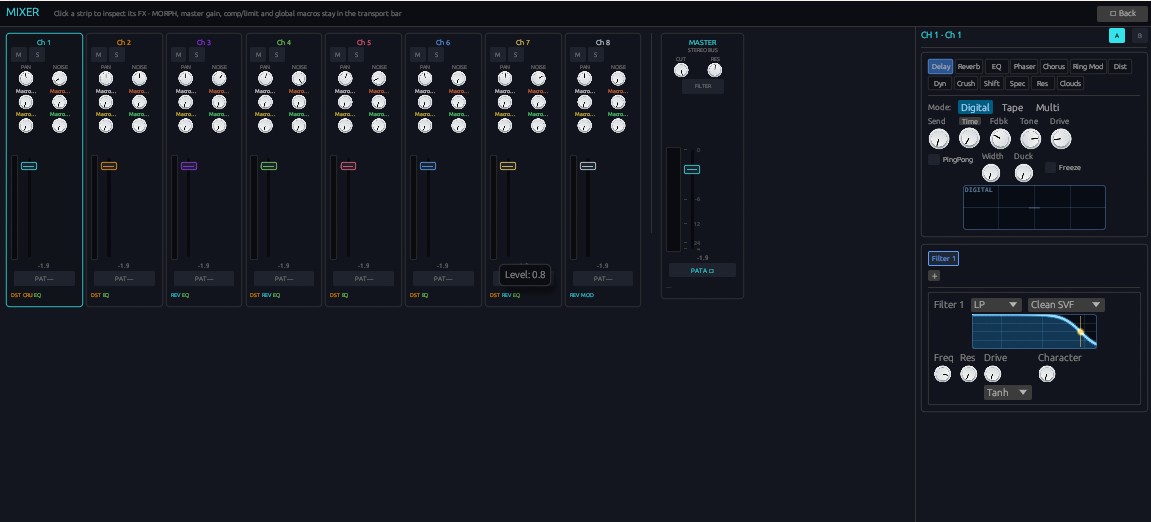
TOMiC Mixer Console
Figure 7.1: Dedicated mixer console with faders, ballistic meters, and FX inspector panel.
The console fills the panel. The mixer lays itself out every frame from the space it actually has: up to eight strips plus the master span the full width, every element (knobs, cells, fonts, pills, FX tiles) scales with the strip up to 2×, and the fader stretches to the panel's height. A ninth or later enabled channel keeps the eight-strip width and scrolls instead of squeezing the others; with fewer channels the strips stop at the cap and centre.
Channel Strip
Each active channel (1 through 16) features a dedicated vertical Channel Strip:
1. Channel Name & Selection: Header indicates channel index or custom label (e.g. CH 1: Kick). Clicking the header highlights the channel strip and opens its FX inspector.
2. Mute / Solo: Mute [M] and Solo [S] buttons.
3. Quick Controls (Pan & Noise Level):
noise.level) for quick balancing without opening voice details. It is deliberately labelled NOISE rather than "Mix": osc.level and noise.level are independent levels, not two ends of a single balance knob — the label above it doubles as a button that cycles the OSC/Noise combine mode (Crossfade / Equal Power / Ring Mod / Add / Min-Max).4. Macro 1-4 Grid: The first four per-channel Macro knobs laid out in a 2×2 grid for instant sound sculpting straight from the mixer.
5. Peak Meter & Volume Fader:
6. Pattern Lock (PAT):
— (FOLLOW): Channel follows global pattern bank changes.A .. L: Locks a single channel to a specific pattern bank (A-L) independent of global changes. The 13th, unlettered FILL slot (see Chapter 6.2) cannot be pinned this way — it is always a global performance override, never a per-channel lock. A queued lock change lands in phase at the boundary of that channel's own cycle, not mid-bar.7. FX Badges: Visual indicators showing active FX modules on the channel. Clicking an FX badge opens that module in the inspector.
Master Strip
Located on the right side of the mixer console:
master_fx).Inspector Side Panel
A dedicated right-side panel popping out from the mixer console:
7.2 Master Bus Section
Signals from all drum channels (1 through 16) sum onto the stereo Master Bus:
Master Bus Processing Chain:
1. Master FX Chain (master_fx): Full FX processing chain (identical to channel FX) including distortion, modulation FX (Chorus, Phaser), spectral processing, Delay, and Reverb. Ideal for shared acoustic spaces and bus glue saturation.
2. Master Filter (master_filter): Single master filter acting over the entire mix (e.g. global LowPass sweeps), disabled by default so existing projects load unaffected. Offers the same 12 filter models available on individual channels (Clean SVF, Diode, Moog, Vintage Lowpass, Sallen-Key/MS-20, Formant, Comb, Ladder, ObXd, Cutoff Warp, Resonance Warp, Sample & Hold).
3. Master Bus Compressor: Stereo bus glue compressor with Threshold, Ratio, Attack, Release, and Makeup Gain controls, toggled on/off independently.
4. Limiter: A single peak limiter (Ceiling + Release controls) preventing digital clipping, toggled on/off independently of the compressor. There is no separate soft-clip stage — the signal chain ends with the limiter, then master gain, then a fixed, always-on safety clamp at +12 dBFS that only engages if both the compressor and limiter are switched off or a feedback loop overshoots.
5. Master Gain: Final output volume control (-60 dB to +24 dB).
7.3 Global Macros
Four Global Macro knobs (gmacro1 - gmacro4) on the transport bar control global parameters. Unlike channel macros:
Link ALL — Relative Knob Ganging Across Channels
A chain-link button (Link ALL) in OSC 1's Mix Mode / dice / copy / paste row gangs every channel while it is on:
7.4 Preset System & Smart Random 2.0
TOMiC offers complete patch management and a sophisticated archetype-driven synthesis engine — Smart Random 2.0:
Preset Browser & Smart Randomizer
Figure 7.2: Preset browser bank management and archetype smart randomizer window.
Factory Banks & User Presets:
Smart Random 2.0 — Archetype Recipes & Sonic Profiles:
Unlike blind chaotic parameter scrambling, Smart Random 2.0 uses authentic sound design recipes tailored to 10 instrument archetypes:
5 Sonic Profiles:
Every archetype can be synthesized through 5 distinct sonic profiles:
Morph-Compatible Layer B Sibling Generation:
When generating a sound, Layer B is no longer synthesized as an unrelated random patch. Instead, Smart Random 2.0 creates Layer B as a musically aligned sibling of Layer A (sharing core topology with intentional parameter offsets), turning the Morph knob into an expressive, seamless timbre sweep.
One-Click "🎲 All" Kit Randomization:
The Tools panel features a dedicated "All" button that randomizes every active channel according to its assigned archetype in a single click — automatically applying mix staging, channel renaming, and creating a full Ctrl+Z Undo snapshot.
Breed — Interactive Evolution of a Channel's Sound
The Breed tab of the channel editor's SEQUENCER tile (🧬 icon, next to the step grid) breeds sounds instead of drawing them: you say which of a few candidates you like, TOMiC works out which knobs that implies.
.tomic-drum preset file, or none (mutations only)..tomic file) and left alone by New Song. Click an entry to play it on the current channel; right-click to send it to any channel, use it as parent B, save it as a .tomic-drum preset, or remove it. Up to 64 entries.7.5 ElevenLabs AI Integration (Text-to-Sound-Effect)
TOMiC features native integration with the ElevenLabs Sound Generation API (text-to-sound-effect, not full text-to-music). All network calls run on a dedicated background thread — never on the audio thread or inside the UI's own frame loop — so a slow request never causes an audio dropout or a frozen interface.
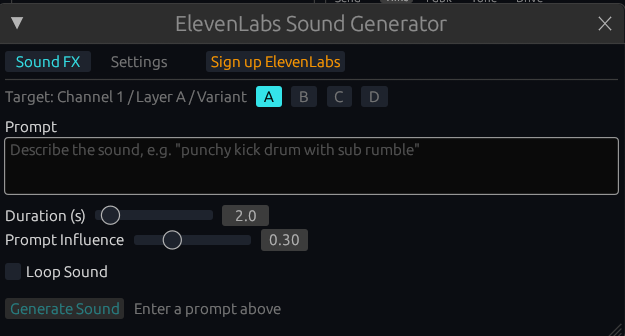
ElevenLabs AI Integration
Figure 7.3: ElevenLabs AI sound generation dialog window.
Using ElevenLabs AI:
1. Click [ AI Sound Gen ] in the top bar to open the Sound FX tab.
2. Pick the target: which channel, which Layer (A/B), and which of the 4 round-robin Variant slots (A-D) the result should be written to.
3. Type a natural-language prompt describing the sound (e.g. "punchy kick drum with sub rumble").
4. Adjust Duration (0.5-22.0 seconds), Prompt Influence (0.0-1.0 — higher follows the prompt more literally), and optionally check Loop Sound for a seamless looping result.
5. Click Generate Sound. TOMiC calls the ElevenLabs API, writes the returned audio to your local samples folder, decodes it, computes a waveform thumbnail, and loads it straight into the chosen channel/layer/variant slot as a NoiseType::Sample — all without leaving the plugin.
6. A Settings tab holds the ElevenLabs API key, base URL, preferred output format, samples directory, and a Test Connection button that reports your account plan.
Generated samples are embedded in the plugin's own sample store, so a saved project stays self-contained and reopens correctly even on a machine that never had the original audio file.
7.6 Artchemy Generative Visual Bridge (Real-Time Visual Art)
Artchemy is a real-time, audio-reactive generative visual art bridge integrated directly inside TOMiC Drum Synth. Built to visualize drum hits and rhythmic patterns in real time, it connects audio and sequencer events with a dedicated web visual renderer (artchemy-web) via a local WebSocket bridge (127.0.0.1).

Artchemy Visual Bridge
Figure 7.4: Artchemy generative visual configuration panel and per-channel brush routing.
Access & Display Modes
Channel Routing & Brush Controls
Each of TOMiC's 16 drum channels features independent Artchemy routing:
SHAPES — Geometric polygons and flat shapesSPLATTER — Fluid dynamic paint splattersINK_BLOT — Organic ink diffusion patternsSTARDUST — Shimmering particle clustersWEAVING — Interlocking woven stroke threadsVINE — Branching tendril growthPULL_SHAPES — Kinetic vector shape pullingPARTICLES — High-velocity particle physicsFRACTAL — Recursive self-similar fractalsNETWORK — Node-line network websSPEED_SHAPES — Velocity-scaled geometric shapesSYMBIOTE — Living organic fluid blobsTUNNEL — Concentric 3D depth tunnelsVIRUS — Cellular reproduction patternsCELLULAR_AUTOMATA — Grid automaton life simulationDOUBLE_PENDULUM — Chaotic physical pendulum trailsStamp (HitStamp) — Single mark placed at the hit position.Cont (Continuous) — Bézier curve path drawn over roughly 12-30 frames.Gen (Generative) — Stamp placed on a 4×4 grid cell derived from the current sequencer step.Orbit — Circular arc orbiting around the zone center.Wave — Sinusoidal wave path sweeping across the zone.Spiral — Outward spiral expanding from the zone center.Burst — Radial stroke shooting from the zone center outward.R.Walk (Random Walk) — Short random-walk path meandering around the start point.Pendulum — Pendulum swing across the zone with a slight arc bow.Rings (Frequency Rings) — Concentric rings sized by frequency-band energy (cymatics-style).Lissa (Lissajous) — Oscilloscope-style Lissajous curve, frequency driven by spectral centroid.Bloom — Rose-curve petals radiating from the zone center.Shock (Shockwave) — Fast expanding ring whose radius is driven by hit velocity — an impact visualizer.Stars (Constellation) — Random points connected by lines, like a star-map diagram.Vine (Tendril) — Chained bézier vine for smooth organic growth, pairs well with the Force Field/Sculpt affects.Breath — Pulsing inhale/exhale loop with smooth radial oscillation.Grav (Gravity) — Parabolic arc that lobs the shape outward and lets it fall and settle.Swirl — Double logarithmic spiral, a yin-yang-like whirl.Weave — Figure-eight infinity loop, a continuous loom path.Canvas Affects & Transformations (14 Affect Modules)
Real-time global canvas affect algorithms:
Mir-H / Mir-V / Quad — Horizontal, vertical, and 4-way quadrant symmetry.Kaleido — Multi-fold radial kaleidoscope reflection.Displace — Vector displacement warp applied to existing shapes.Field (Force Field) — Vector force field steering particle trajectories.Smudge — Fluid dynamic color blending (Liquid Smudge).Sculpt / Rotate / Smooth — Edge sculpting, rotation drift, and antialiasing.Shatter — Fragment shapes into debris upon hit collisions.Erode — Opacity decay and shape erosion over time.RndClr — Automatically randomizes stroke color on every hit.Limit — Caps maximum total shapes on canvas for optimal rendering performance.Auto-Clear Canvas
Off for persistent cumulative artwork). Ensures seamless visual synchronization with bar phrases during live performances.7.5 Display Scaling, UI Persistence & Diagnostics
TOMiC features dedicated settings and display persistence mechanisms designed for seamless integration with high-resolution studio monitors:
%APPDATA%\tomic\ui_settings.json and remembered across application restarts and DAW sessions.requested_scale pipeline, ensuring artifact-free window resizing on multi-monitor setups without startup layout jumps.Version 0.6.0 () ), streamlining technical support and version tracking.